
If you've searched for a black iPhone wallpaper, you've probably noticed that a lot of them aren't actually black. They're a very dark grey, and on an iPhone's OLED screen that difference is not cosmetic - it changes what the display physically does.
This guide covers which iPhones have OLED, what true black actually buys you on one, and how to get a wallpaper that's genuinely #000000 at your model's exact resolution.
Which iPhones actually have an OLED screen
Almost all of them, now. Apple moved to OLED on the flagship line years ago and has since pushed it down the range:
| Model | Screen |
|---|---|
| iPhone X, XS, 11 Pro | OLED (Super Retina) |
| iPhone 12, 13, 14, 15, 16 (all variants) | OLED |
| iPhone XR, 11 | LCD (Liquid Retina) |
| iPhone SE (2nd / 3rd gen) | LCD |
So unless you're on an SE, an XR or an 11, your iPhone has an OLED panel - and everything below applies to you.
Why "black" and "true black" are different on iPhone
An OLED pixel makes its own light. To display #000000, it doesn't dim - it switches off completely. No light, no power draw for that pixel.
A wallpaper that looks black but is actually #0d0d0d or #1a1a1a never reaches that state. Every one of those pixels is still lit, just faintly. Your eye can barely tell the two apart in a dim room. The panel treats them as completely different things.
That's the entire reason "true black" is a distinct term rather than marketing language, and it's why a search for pure black oled wallpaper turns up different results than one for dark wallpaper.
Check before you trust it: open any wallpaper in an image editor and use the colour picker on the dark area. If it doesn't read 0,0,0 it's dark grey, and it won't switch pixels off.
Does a black wallpaper save battery on iPhone?
On an OLED iPhone, yes - because black pixels are off pixels, and the display is typically the single biggest power draw on the device.
How much depends on how much of the wallpaper is actually black, how bright your screen is set, and how often you're looking at the home screen rather than inside an app. A mostly-black wallpaper at high brightness is where the effect is largest.
It's the same mechanism behind iOS's system-wide Dark Mode, which Apple ships partly as a battery feature on OLED devices. A true black wallpaper applies that logic to the single longest-displayed image on your phone.
On an LCD iPhone (SE, XR, 11) it saves nothing at all. The backlight is on regardless of what's displayed.
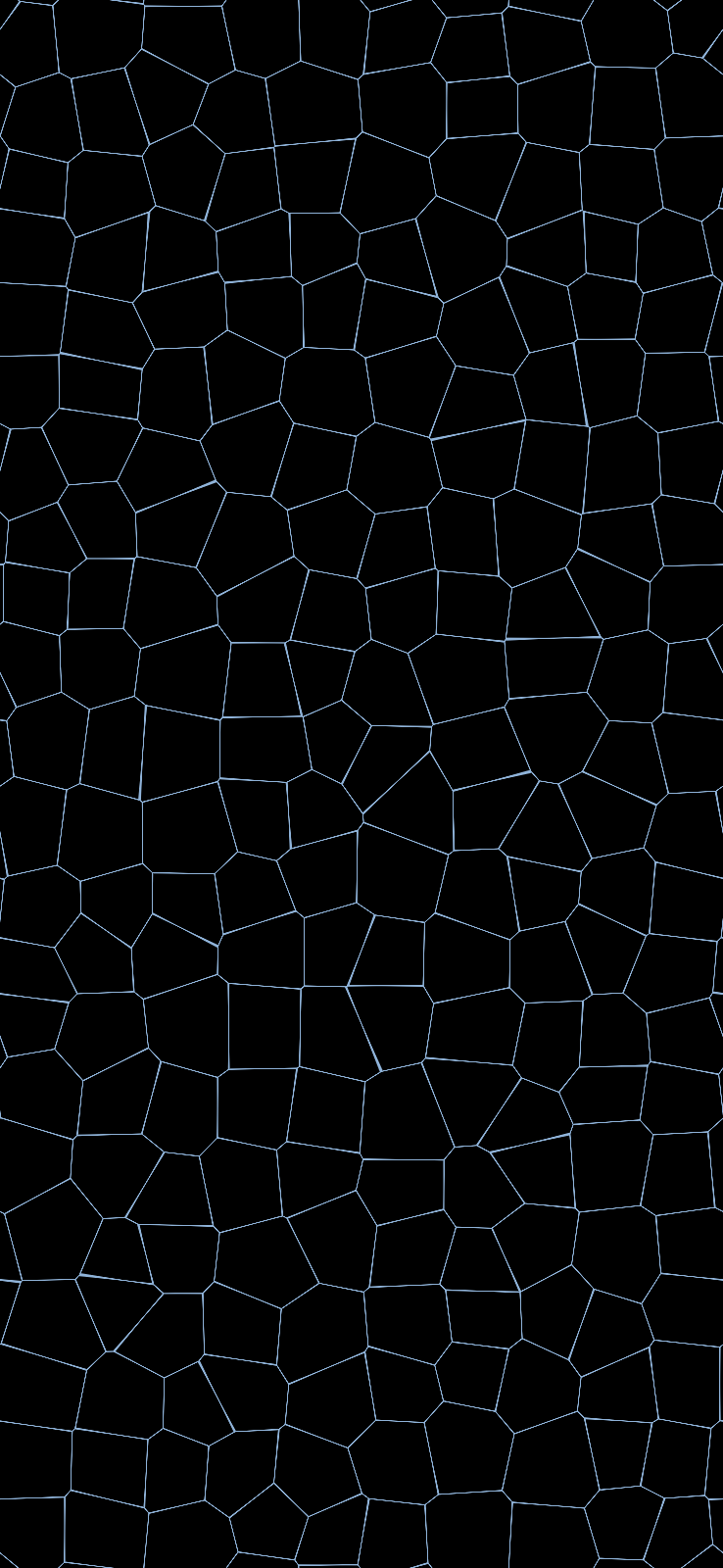
1290×2796 - iPhone 15 Pro Max / 16 Pro Max. About 97% of this render is literal #000000, so on an OLED iPhone all but a few pixels in a hundred are switched off rather than dimly lit.
What true black does for the always-on display
iPhone 14 Pro and later have an always-on display: at rest the screen stays dimly lit showing the clock, widgets and a darkened version of your wallpaper.
That's the one case where your wallpaper is on screen more or less continuously. A wallpaper whose background is truly black means the always-on state is lighting almost nothing except the clock and widgets themselves - which is both the least power-hungry version of that feature and, visually, the cleanest.
If you use always-on at all, this is the single strongest argument for a true black lock screen.
Black iPhone wallpaper sizes, by model
Getting the resolution right matters less on a phone than on a monitor - you're holding it inches away and iOS crops centrally - but an exact match avoids any scaling at all:
| Model | Resolution |
|---|---|
| iPhone 16 Pro Max / 15 Pro Max / 14 Pro Max | 1290×2796 |
| iPhone 16 Pro / 15 Pro / 15 / 14 Pro | 1179×2556 |
| iPhone 14 / 13 / 13 Pro / 12 / 12 Pro | 1170×2532 |
| iPhone 14 Plus / 13 Pro Max / 12 Pro Max | 1284×2778 |
| iPhone 13 mini / 12 mini | 1080×2340 |
| iPhone SE (3rd gen) | 750×1334 |
If your exact model isn't listed, picking the next size up is always safer than down - downscaling is clean, upscaling is what looks soft.
How to set a true black wallpaper on iPhone
- Save the image to Photos.
- Open Settings › Wallpaper › Add New Wallpaper.
- Choose Photos and pick it.
- Pinch to zoom out fully so iOS doesn't crop into it - with a correctly sized image there's nothing to crop.
- Tap Add, then choose Set as Wallpaper Pair to use it on both the lock and home screens.
One iOS-specific thing worth knowing: iOS applies a slight blur and dimming to the home screen wallpaper behind your app icons by default. On a true black wallpaper that's effectively invisible, which is another reason black holds up well under iOS's own treatment.
Does a black wallpaper help with burn-in on iPhone?
It removes one contributor, and it isn't a cure.
OLED pixels age slightly every time they're lit, and burn-in becomes visible when that ageing is uneven - a UI element sitting in the same spot for months wears those pixels faster than their neighbours. A pixel that stays switched off doesn't age at all.
So a wallpaper that's black in the regions behind long-lived interface elements removes wear from exactly the area most at risk. What it can't do is offset hours a day in a bright app. Burn-in is cumulative across everything you display, and modern iPhones already mitigate it aggressively with pixel shifting.
Dark wallpaper vs black wallpaper on iOS
These get used interchangeably and shouldn't be:
- Dark wallpaper means low-brightness colours - deep blues, charcoals, muted gradients. Still lit pixels, still drawing power, but easy on the eyes at night.
- Black wallpaper usually means "mostly dark", which may or may not include real
#000000areas. - True black wallpaper specifically means the background is
#000000, so those pixels are off.
All three look good. Only the third does anything measurable to your battery.
Where to get an OLED black wallpaper for iPhone
The reliable approach is to generate one rather than download a file and hope its blacks survived whatever compression it's been through - JPEG in particular tends to lift pure black slightly, which is enough to keep every pixel lit.
In the editor, pick a pattern with large unbroken background areas, choose one of the true-black palettes (True Black, Obsidian, Void Ember, Black Pine - each opens on a literal #000000), set the size to your model's resolution, and download. It renders at that exact resolution as a PNG, so the black stays black.
More true-black presets are on the OLED wallpaper page, and iPhone-specific sizing is covered on the iPhone wallpaper page. If you want the full explanation of the OLED mechanism itself, that's in why a true black wallpaper actually matters on OLED.
Frequently asked questions
Is a black wallpaper bad for an OLED screen? No - it's the opposite. Black areas keep pixels switched off, which is the least demanding thing you can ask an OLED pixel to do.
Will a black wallpaper make my icons hard to see? Usually the reverse: light icons have maximum contrast against true black. Watch only for icons with dark edges or dark drop shadows, which can lose definition.
Does this work on iPad? iPad Pro models with OLED behave identically. Most other iPads are LCD, where a black wallpaper is purely an aesthetic choice.
Why do my downloaded black wallpapers look grey?
Either the file genuinely isn't #000000, or your screen is an LCD, where black is backlight leaking through rather than pixels being off.